
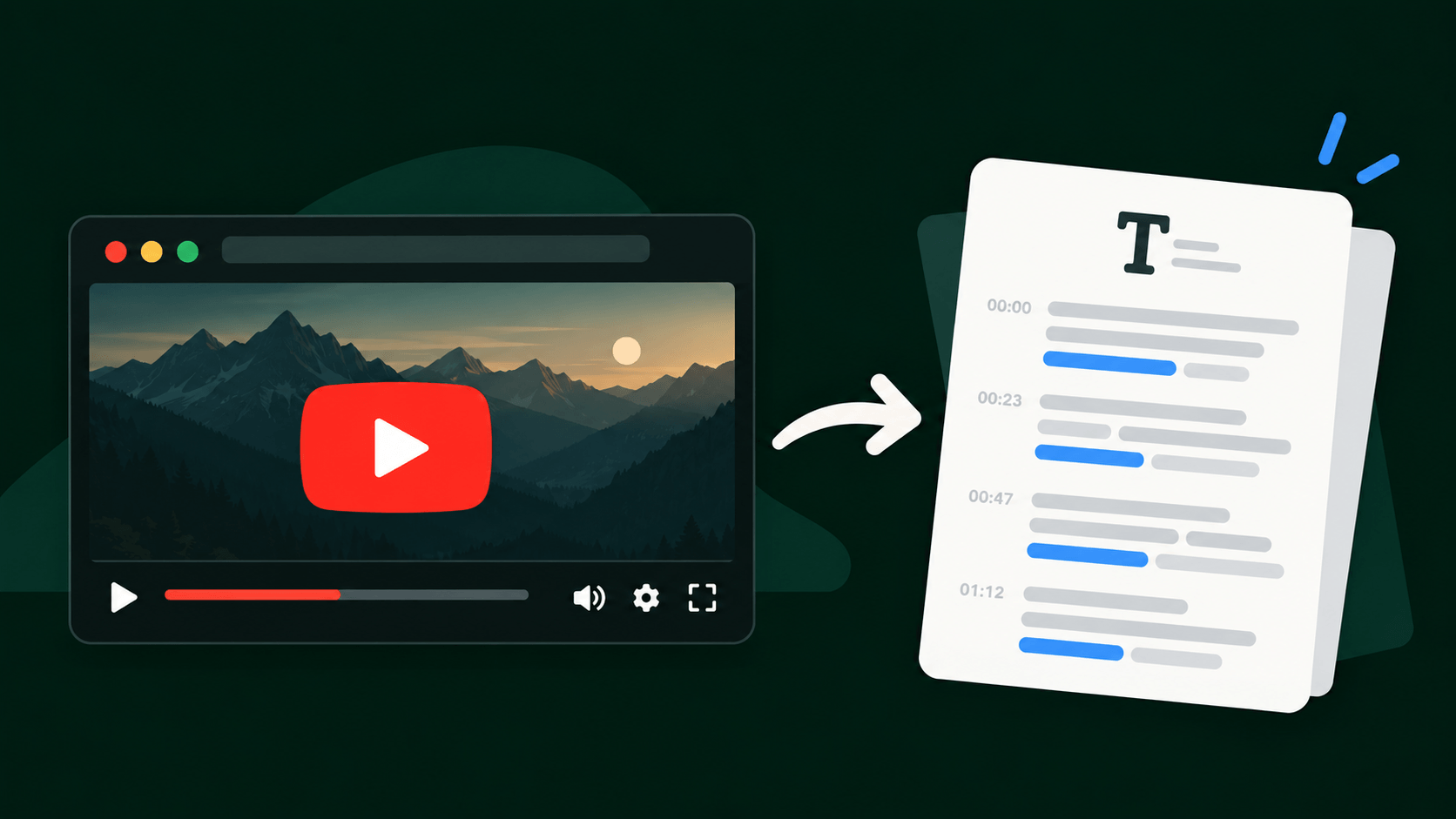
YouTube has a huge amount of useful stuff in it, and almost all of it is locked up as video. That's fine for watching. It's not so great when you want to read it, search it, quote it, or reuse it.
Maybe you're studying from a long lecture and want notes you can skim. Maybe you want to pull a quote from an interview without scrubbing through an hour of footage. Maybe it's your own channel, and you'd like to turn your best videos into blog posts, add subtitles, or offer them in another language. Or you just prefer reading to watching. Either way, you need a transcript.
This takes a few minutes, and you don't have to download anything.
First, check what YouTube already gives you
A lot of videos already have a transcript built in. Open the video, expand the description by clicking on it (or tapping "...more" on your phone), scroll to the bottom, and hit Show transcript. A panel opens next to the video with the full text. On a phone you'll need the YouTube app, because the mobile website doesn't have the option.
It's free and takes about ten seconds, so try it first. The catch is that transcripts only appear when a video has captions, so if there's no Show transcript button, there's nothing to read. And even when it's there, it's YouTube's automatic captions, which tend to mangle names and technical terms, don't tell you who's speaking, and come as plain text with no summary. If you want something cleaner, or the video has no captions at all, here's the better route.
Step 1: Copy the video link
Open the video on YouTube and copy its link from the address bar (or tap Share, then Copy link, on your phone). That's all you need for this step.
One note: a transcript is great for your own notes, study, and research. If it's someone else's video, don't republish their words as your own.
Step 2: Paste it into Clipto
This is where we'd use Clipto. It turns video and audio into text in more than 99 languages, and it takes links from YouTube directly, so you don't need to download the video first.
Open Clipto, choose the online link option, paste the YouTube link, and let it run. For a typical video it takes a few minutes. If it's your own video and you've got the original file handy, you can upload that instead, which works just as well.

Clipto
Clipto turns video and audio files or links into text transcripts in 99+ languages, with speaker labels, timestamps, AI summaries, translation, and a chat that answers questions about what was said.
Visit CliptoStep 3: Read through what you get back
You get more than a wall of text. Clipto labels who's speaking, adds timestamps so you can jump to the right moment in the video, and can write an AI summary with an overview, key points, and action items. There's also a chat where you can ask questions about the video, which is handy when all you need is one detail from a two-hour recording.
Give it a skim before you use it for anything public. Like most transcription tools, it slips a bit with heavy accents and technical jargon, so check names and specialist terms in particular.
Step 4: Export it in the format you need
Download the transcript as a plain text file or a Word document if you want to read it or edit it. If you want subtitles for your own video, export an SRT or VTT file (the two standard subtitle formats), which you can then upload to YouTube as captions. And if you need another language, Clipto can translate the transcript too.