
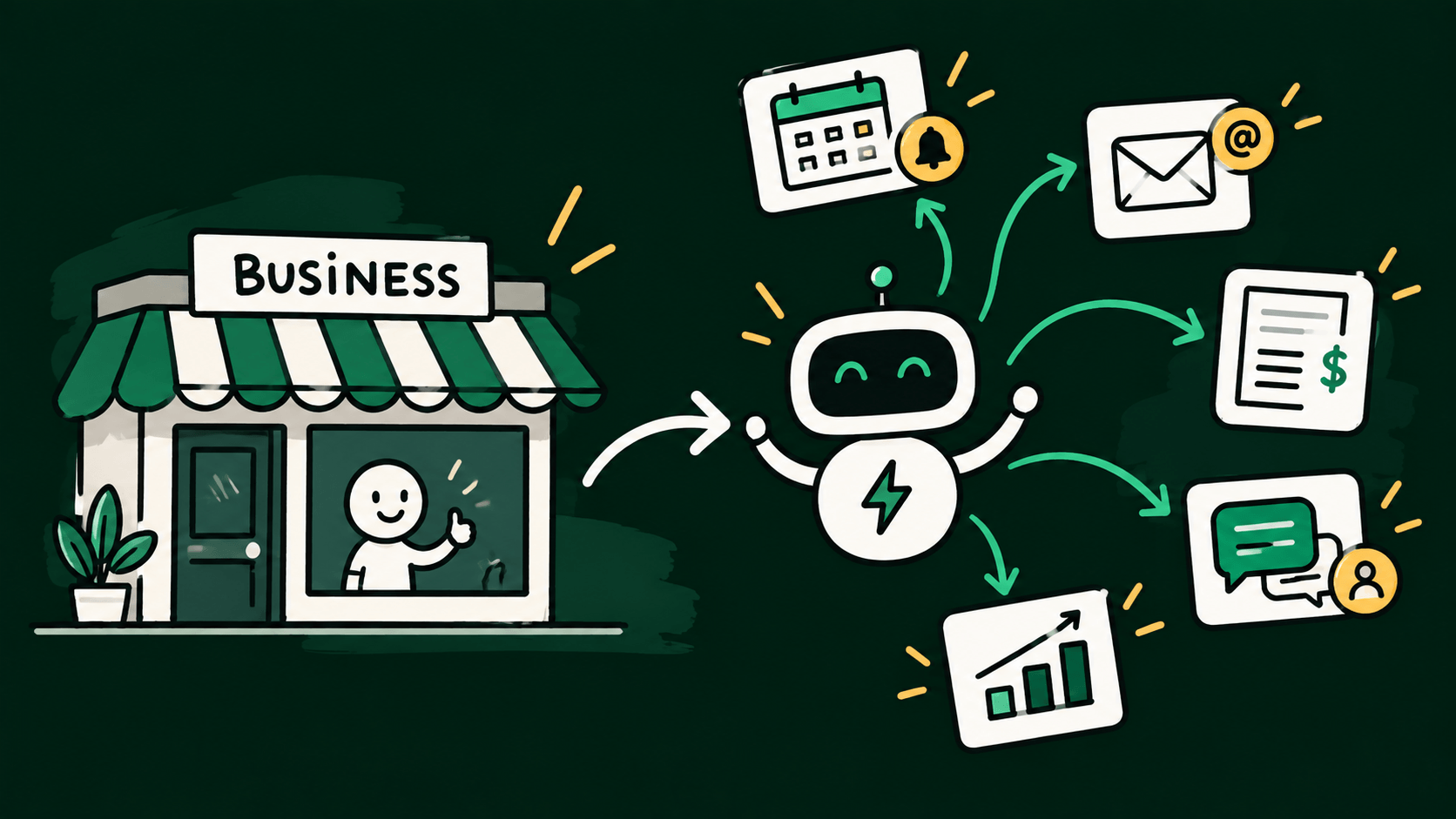
Most small businesses run on a lot of tiny, repeated jobs. A new inquiry comes in and someone copies it into a spreadsheet. A customer pays and someone sends a thank-you email by hand. An invoice lands in your inbox and gets forwarded, saved, and logged somewhere. None of it is hard. It's just constant, and it eats hours every week.
Automation tools take those jobs over. You set up a simple rule once (when this happens, do that) and it runs in the background from then on. You don't need to code. You connect your apps, pick what should kick it off, and choose what should happen next.
Here are five worth setting up first.
Which tool to use
We'd build all five in Make. It's a very visual builder, so you can see each step laid out like a flowchart, which makes it one of the easier ones to learn. All five of these are short automations, a handful of steps each, and that's exactly where Make works best. It charges for each step an automation runs, which only really matters for long, busy workflows, and these aren't.
There's also a free plan, so you can build your first automation and watch it run before you pay anything.

Make
Make links your apps together so tasks happen automatically, and lays out every step as a flowchart you can see and rearrange, instead of a plain list.
Visit MakeIf you want to see how it stacks up against the alternatives first, we go through Zapier, Make, and n8n properly in Zapier vs Make vs n8n.
1. Send new leads straight to your customer list and your team
When someone fills in the contact form on your website, their details go into your spreadsheet or CRM (the tool where you keep your list of customers), you get a message in Slack, and they get a quick confirmation email. The trigger is the form being submitted, and the steps after it are add a row, send a message, send an email.
It's one workflow, and it means no inquiry sits unseen in an inbox over the weekend.
2. Send a thank-you the moment someone pays
When a payment comes in through Stripe or your checkout, an email goes out straight away to thank the customer, and they're added to your mailing list or a follow-up sheet. It makes you look on top of things, and you never have to remember to do it.
3. File invoices and receipts automatically
Every time an email arrives with an attachment from a supplier, the file is saved to a folder in Google Drive and a row is added to a spreadsheet with the date, the sender, and the file name. By the end of the month you have everything in one place, instead of hunting through your inbox the night before your accountant needs it.
4. Remind people about bookings so they actually turn up
When someone books through a scheduling tool like Calendly, or straight into your calendar, they get a reminder the day before, and the job lands on your to-do list. You get fewer no-shows and nothing to chase.
5. Turn one piece of content into a week of posts
When you publish a new blog post, it gets sent to an AI model like Claude or ChatGPT to draft a few social captions, and those get dropped into a sheet or a Slack channel for you to approve. You stay in charge of what actually goes out, but you're editing instead of starting from a blank page.
Start with just one
Don't try to build all five in one afternoon. Pick the one that annoys you most, get it working, and watch it run for a week before you build the next. Starting with a single, narrow job is the easiest way to learn how the tool thinks, and the second and third ones come much faster.