
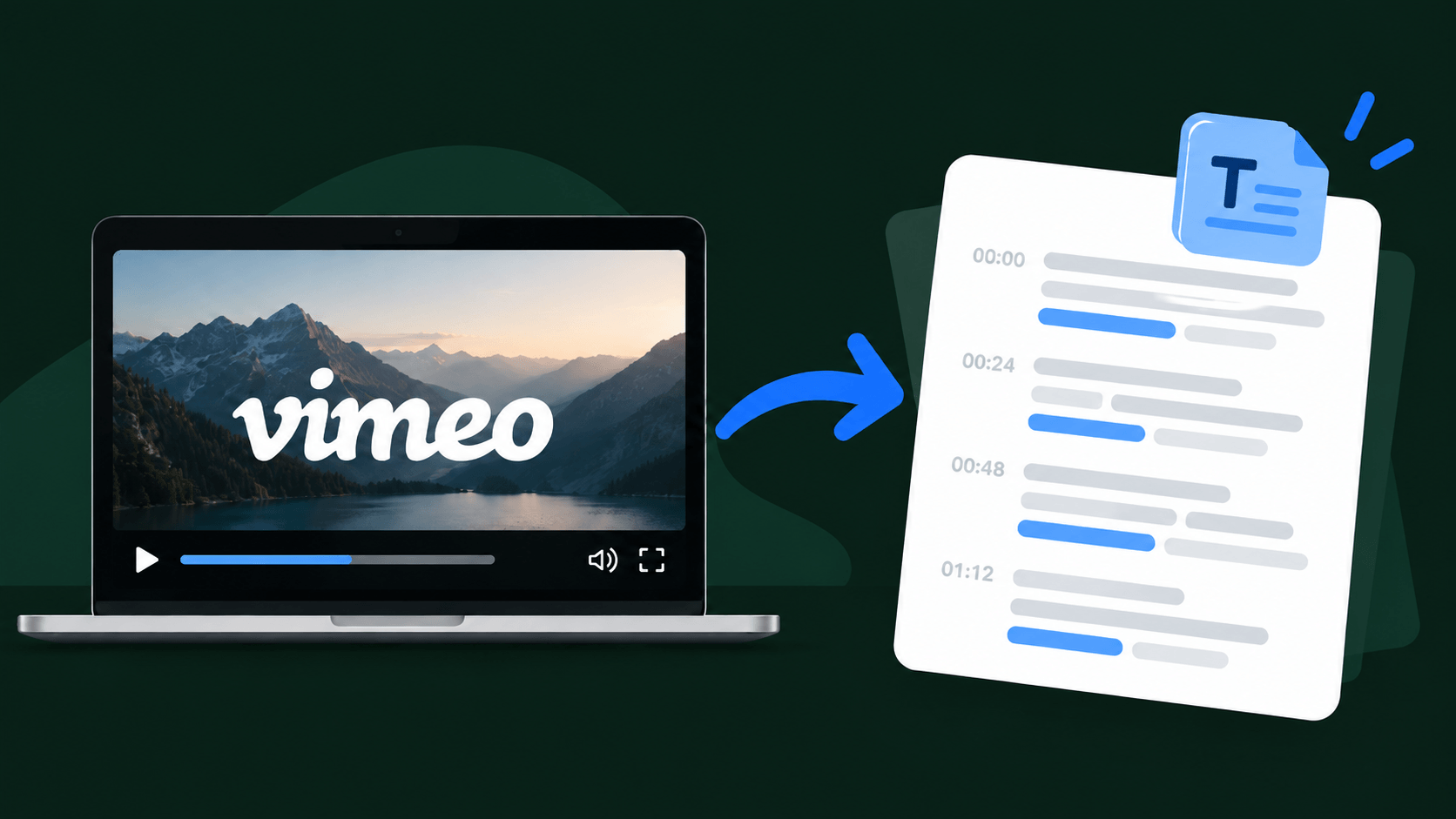
Vimeo is great at hosting video. Getting the words out of that video as plain text is a different story, and it comes up more often than you'd think.
Maybe you need subtitles so people can watch with the sound off. Maybe you've got a webinar or training session you'd like to turn into a blog post, a newsletter, or a handful of social posts. Maybe it's a long interview and you just want to search it for one quote without scrubbing through an hour of footage. Or you need the same video in another language. All of that starts with a good transcript.
This guide is for videos in your own Vimeo library. It takes about ten minutes, and most of that is waiting.
First, check what Vimeo already gives you
Vimeo can generate captions for videos on paid plans, and if yours already has them, you can download them from the video's settings (only people with edit access to the video can do this). It's worth a quick look before you do anything else.
The catch is that captions aren't always there, and a caption file isn't quite the same as a transcript you can actually work with. If you want clean text with speaker labels, timestamps, a summary, and the option to translate it, the route below is simpler.
Step 1: Download the video from your Vimeo library
You'll need a paid Vimeo plan for this. Open your library, select the video, click the small arrow on the Share button in the top right of the video settings page, and choose Download. Vimeo then offers a few versions to save, and the file comes down as an MP4.
A couple of tips:
- A smaller version is fine. The transcription only needs the sound, so there's no reason to download the biggest file. A smaller one uploads faster.
- No Download option? The video's download permissions might be switched off. As the owner, you can change that in the video's settings, and Vimeo's Help Center walks through it.
- One at a time. Vimeo doesn't let you download videos in bulk, so if you have a stack of them, work through them one by one.
Vimeo changes its menus now and then, so if yours looks a bit different, their help page on downloading a video from your library has the current steps.
Step 2: Upload the file to Clipto
This is where we'd use Clipto. It turns video and audio into text in more than 99 languages, and it can handle recordings up to six hours long, so even a full-length webinar isn't a problem.
Open Clipto, choose the option to upload a file from your computer, and pick the MP4 you just downloaded. Then let it do its thing. For a typical video it's a matter of minutes, not hours.

Clipto
Clipto turns video and audio files or links into text transcripts in 99+ languages, with speaker labels, timestamps, AI summaries, translation, and a chat that answers questions about what was said.
Visit CliptoStep 3: Read through what you get back
You don't just get a wall of text. Clipto labels who's speaking, adds timestamps so you can jump to the right moment, and can write an AI summary with an overview, the key points, and any action items. There's also a chat where you can ask questions about the video, which is handy when you only need one detail from a long recording.
Do skim it before you publish anything. Like most transcription tools, it slips a bit with heavy accents and technical jargon, so check names and specialist terms in particular.
Step 4: Export it in the format you need
Download the transcript as a plain text file or a Word document if you want to read it or edit it. If you want subtitles, export it as an SRT or VTT file (those are the two standard subtitle formats), which you can then add back to your video as captions. And if you need another language, Clipto can translate the transcript too.